
How to Install Python 3.7 on Ubuntu, Debian and Linux Mint

Image result for python

At writing time of this article Python 3.7.3 latest stable version of 3.7 series is available to install. This article will help you to install Python 3.7.3 on Ubuntu and Linux Mint operating system. You can visit here to read more about Python releases.

Step 1 – Prerequsiteis

Use the following command to install prerequisites for Python before installing it.

sudo apt-get install build-essential checkinstall
sudo apt-get install libreadline-gplv2-dev libncursesw5-dev libssl-dev \
    libsqlite3-dev tk-dev libgdbm-dev libc6-dev libbz2-dev libffi-dev zlib1g-dev

Step 2 – Download Python 3.7

Download Python using following command from python official site. You can also download latest version in place of specified below.

cd /usr/src
sudo wget https://www.python.org/ftp/python/3.7.3/Python-3.7.3.tgz

Now extract the downloaded package.

sudo tar xzf Python-3.7.3.tgz

Step 3 – Compile Python Source

Use below set of commands to compile Python source code on your system using altinstall.

cd Python-3.7.3
sudo ./configure --enable-optimizations
sudo make altinstall

make altinstall is used to prevent replacing the default python binary file /usr/bin/python.

Step 4 – Check Python Version

Check the latest version installed of python using below command

python3.7 -V

Python-3.7.3
How to Install Python 3.6.1 in Ubuntu 16.04 LTS

Hello, Guys!! If you want to install Python in ubuntu , Follow these steps:-

This quick tutorial is going to show you how to install the latest Python 3.6.1 in Ubuntu 16.04 LTS via PPA.

Ubuntu 16.04 comes with both Python 2.7 and Python 3.5 by default. You can install Python 3.6 along with them via a third-party PPA by doing following steps:

1. Open terminal via Ctrl+Alt+T or searching for “Terminal” from app launcher. When it opens, run command to add the PPA:

        sudo add-apt-repository ppa:jonathonf/python-3.6                                    

2. Then check updates and install Python 3.6 via commands:

sudo apt-get update

sudo apt-get install python3.6

Now you have three Python versions, use python command for version 2.7, python3for version 3.5, and/or python3.6 for version 3.6.1.

3. To make python3 use the new installed python 3.6 instead of the default 3.5 release, run following 2 commands:

sudo update-alternatives --install /usr/bin/python3 python3 /usr/bin/python3.5 1

sudo update-alternatives --install /usr/bin/python3 python3 /usr/bin/python3.6 2

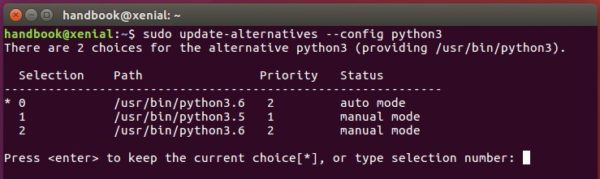
Finally switch between the two python versions for python3 via command:

sudo update-alternatives --config python3

After selecting version 3.6:

python3 -V

UPDATE: due to this bug, gnome-terminal won’t launch after step 3, a workaround is running following commands to recreate the symlink:

sudo rm /usr/bin/python3

sudo ln -s python3.5 /usr/bin/python3